Summary
Responding to Confirmation messages is how your patients will confirm their appointments.
Patient Communicator reads your patient's confirmation status in the practice management software (PMS) and only sends a Confirmation request to patients whose status is UNCONFIRMED.
Patient confirmation replies received by Patient Communicator can be sent to the PMS where the patient status will be updated as confirmed.
Viewing Schedule Breakdown in Patient Communicator will always show the current confirmation status and, if the appointment is Confirmed, the confirmation method.
You can recognize Confirmation Notifications in the Timeline view by their purple color.
 Confirmation Notification
Enable a Confirmation Notification
Note: When creating and enabling a Confirmation notification, all of the following steps must be completed: Not setting or incompletely setting any step below may prevent messages from being delivered to the patients. It is helpful to name the notification for easy identification in the Timeline view.
 Enter Confirmation Name
1. Message delivery method: Choose any combination of Email, SMS, or Voice (where available) by toggling the buttons to the ON (green) position. Delivery Method Toggles
2. Enable: Turn on the notification by toggling the button ON (green). Enable Toggles
3. Days Before/Send out at: Select how many days before the appointment date to send the Email and/or Sms confirmation and the time of day to send out. In the example below, the first request for confirmation will be sent 5 days before the date of appointment. If the patient is not yet confirmed 3 days prior to the appointment, another Email and/or SMS will be sent. If the first confirmation request was replied to by the patient as a confirmation, the second request will not be sent.  Email/SMS Time
4. Providers: The provider associated with a patient’s appointment must be present. If a provider used for appointment scheduling is not present in the drop down menu, try refreshing providers, return and refresh the notification, and enable the desired provider. Settings > General Settings > Refresh PMS Data. Provider Selection Field
5. Appointment Types: The appointment type associated with a patient’s appointment must be present. If an appointment type used for an appointment in not present in the drop down menu, try refreshing appointment types, return and refresh the notification, and enable the the desired appointment type. Settings > General Settings > Refresh PMS Data.  Appointment Type Selection Field
6. Voice Confirmations: A request to confirm an upcoming appointment can be made to the patient’s home phone. To enable an automated voice call:
Call at: Set the time of day to make the call
Days Before: Set the number of days before the appointment to call
Speaker: English is always default. You may choose Spanish, Mexico for a voice message in Spanish if Alice is chosen as Speaker. Choosing Spanish, Spain enables Conchita.
Language: English is always default. You may choose Spanish, Mexico for a voice message in Spanish if Alice is chosen as Speaker
Call when: Choose what contact information (or lack of) triggers a call
Option to call Office: Will the patient be able to press a button to call the office telephone
Office Number: Displays what phone number the patient will reach when Option to call Office is enabled
 Voice Call Settings
7. Advanced Settings: A practice may decide to send a voice call request on a day other than scheduled. In the Voice Call Settings example above, a confirmation request for a Monday appointment will be delivered on Saturday (2 days before the appointment date). In the Voice Advanced Settings example below, the voice confirmation call scheduled for Saturday and Sunday (left column) have been changed to the Friday before (right column).
 Voice Advanced Settings
8. Templates: Each notification will preload with a default template when the message delivery method is turned on.
To view the current enabled template, click the template tab in the notification for the enabled delivery method. To change or edit the current template, click Edit Template.
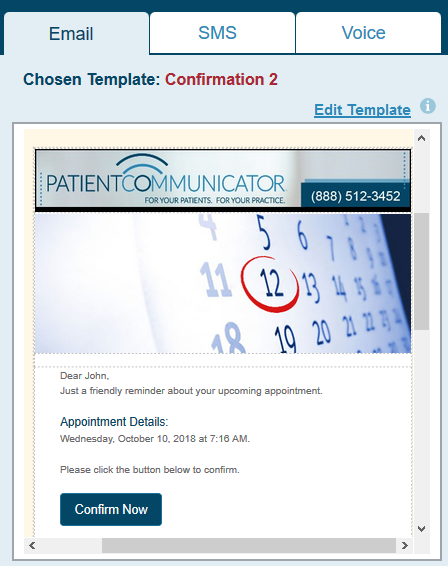 View Template
To change templates, choose a different template from the drop down menu in the Message Template screen. When done, click SAVE & CLOSE
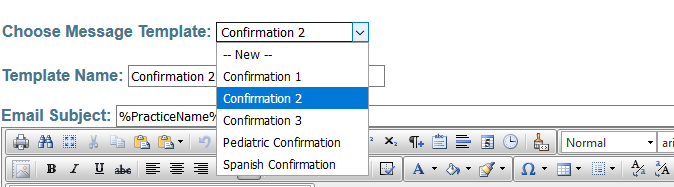 Change Template
After completing steps 1-8 above, and the notification is enabled and will be automated on the next calendar day.
To edit or create new templates, see articles for Email & SMS Templates or Voice Templates.
<End of Article>
